



Uninstallation
Learn how to uninstall The Parental Control from both parent and child's device.From Child's Device
Keeping safety concerns in mind, it is almost impossible for kids to uninstall The Parental Control from their device without parent authorization. However, as parent, you can remove the app from your kid's phone in a few quick steps.
Step 1: Go to the Kid dashboard.
Step 2: Tap on the menu button (three dots) at the top right corner of your kid's device.

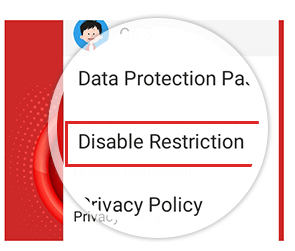
Step 3: Now from the drop down list, tap on Disable Restriction.
Step 4: Enter the credentials used while registering the account and tap continue.
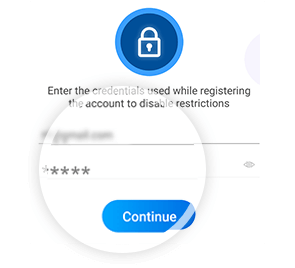
Important: The restriction will be lifted for 2 minutes.
Step 5: If you are using App Version below 1.3.0 then - Enter your PIN. For more information, see How do I set PIN? in FAQ. And from App Version 1.3.0 you can use login credentials as mentioned in step 1 to 4.
Step 6:
Go to SETTINGS  on your kid's phone.
Step 7: On the search bar, type Device Administrators and tap on it. You can also find the option under Security menu in Settings.
Step 8: Find The Parental Control and tap on the toggle to deactivate it.
Step 9: Tap on Deactivate at the bottom right corner of the Device administrator screen. Tap OK.
Step 10: Device administrators for The Parental Control is successfully disabled.
Now you can Uninstall the app. Go to Settings >>> Apps >>> Bit Guardian Parental Control >>> Uninstall.
From Parent's Device
If you do not wish to use The Parental Control anymore, you can uninstall it anytime from your device's Settings. To uninstall The Parental Control, follow the steps below:
For Android
Step 1: Go to SETTINGS on your phone.
Step 2: Under the settings menu, find Apps/ Applications.
Step 3: Scroll down for The Parental Control and tap on it.
Step 4: Tap on Uninstall. A dialog box will appear. Tap OK.